


Claude Tag turns Claude into a general AI assistant inside Slack: the team can mention @Claude in the channel, pass the task to it and receive the result in the same thread. In this guide, we’ll look at the requirements, the four official setup steps, access rights, memory, and example queries.
Current as of June 24, 2026. Claude Tag is in public beta for Claude Enterprise and Team customers. The interface, availability, and terms may change, so check the official documentation before deployment.
What is Claude Tag
On June 23, 2026, Anthropic introduced Claude Tag, a team-oriented way to work with Claude that launched in Slack. Unlike an individual chat, the assistant operates under a separate agent identity, can access only selected channels and tools, and keeps its work visible in the shared thread.
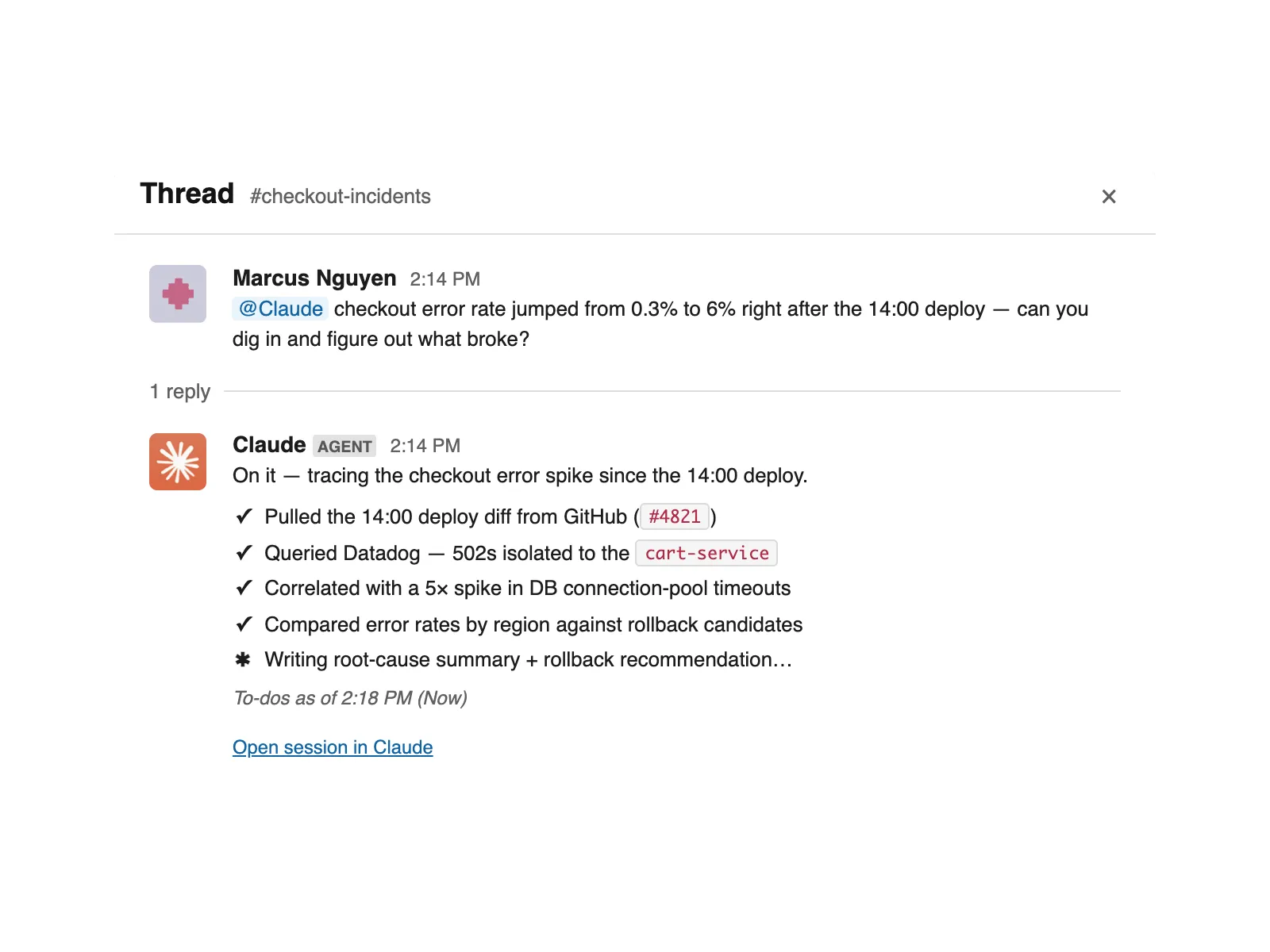
Anyone in a connected channel can invoke the assistant with @Claude. According to the product page, Claude can analyze long discussions, create documents and tickets, retrieve metrics, monitor channels, run long tasks, and return with results later.
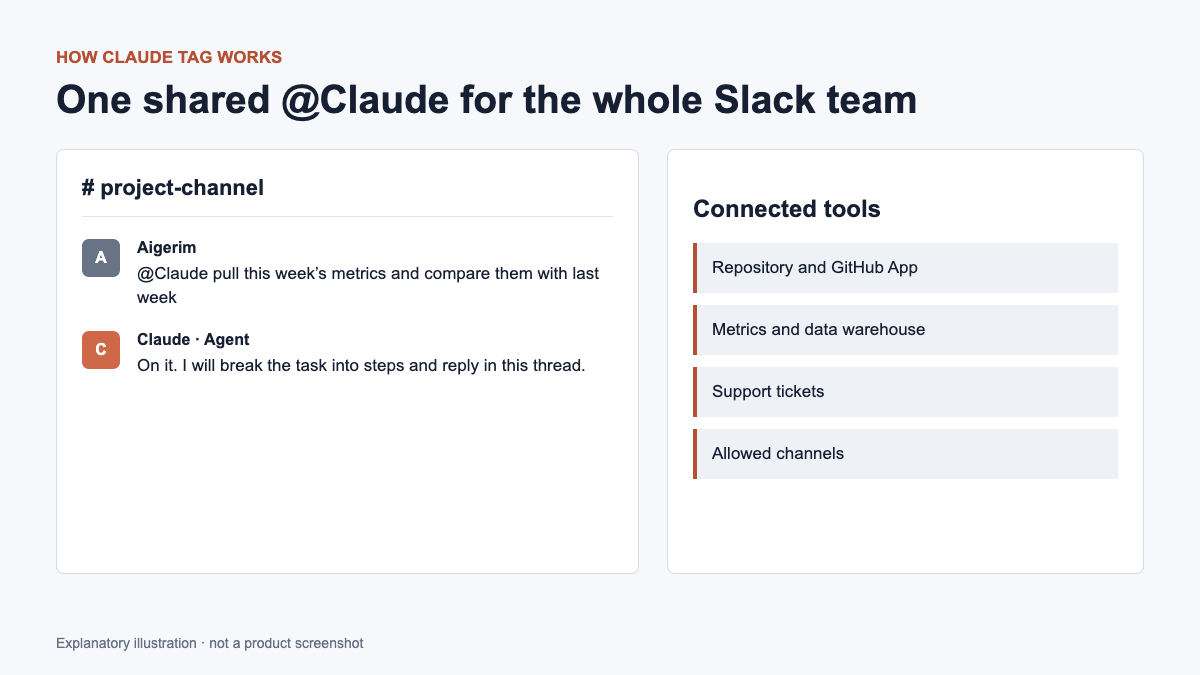
@Claude; the assistant uses approved tools and responds in the shared thread. Explanatory illustration, not a product screenshot.What can Claude Tag do?
- General work: the result and progress are visible to channel members, so a colleague can continue the task in the same thread.
- Channel context: Claude uses messages and memory available in a specific area.
- Long-running tasks: The assistant breaks the work into stages and publishes a checklist as it is completed.
- Routines and monitoring: You can set up a schedule, channel monitoring, and reaction to events.
- Tools: Service accounts, data, plugins and instructions are connected through the Access bundle.
What you need before setting up
| Requirement | What to check |
|---|---|
| Plan | Claude Enterprise or Team with public beta access |
| Claude role | An Owner in the Claude organization; an Admin can view settings but cannot complete setup |
| Slack role | A Slack workspace administrator to install the app and run @Claude connect |
| Usage credits | Team organizations must load usage credits before channel work can run |
| Pilot channel | A private channel is recommended for the initial test |
| Service accounts | Separate credentials for connected systems, not employees’ personal logins |
The setup is performed by the organization owner on the page Claude Tag Admin Settings. Installing the Slack application is only a precondition: after it you need to link the workspace, create an Access bundle and launch the agent identity.
How to Set Up Claude Tag: Four Steps
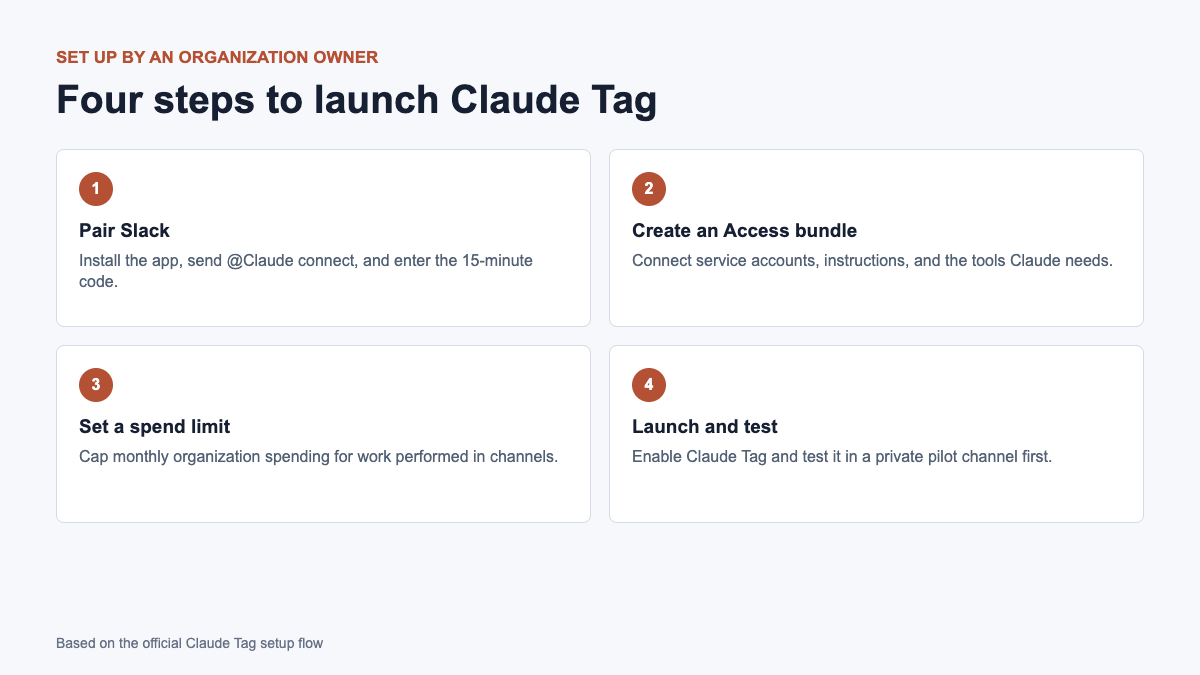
Step 1: Link your Slack workspace
- Open Claude Tag Admin Settings and click Set up.
- Follow the link Install Claude for Slack and confirm permissions in the Slack Marketplace.
- In any channel of the desired workspace, send:
@Claude connectThe command can only be executed by a Slack administrator. Claude will return a pairing code that is valid for 15 minutes. Paste it into Claude Admin Settings and select the entire workspace or specific channels.
Step 2: Create an Access bundle
An Access bundle is a named set of service credentials, allowed repositories, plugins, and instructions. Connect only the systems needed for the selected channels. Anthropic recommends using service accounts rather than personal employee logins.
GitHub is connected separately through the Claude GitHub App after initial setup. Without external connections, Claude will be able to read and post messages to allowed Slack channels, but will not have access to the CRM, data warehouse, or repositories.
Step 3: Set a spending limit
Work in channels is paid from the organization’s balance, and not from the user’s individual subscription. Ready-made limits and a custom amount are available in the setup wizard. Direct messages work through Claude’s personal account and are not included in this channel limit.
Step 4: Test and Run
Leave the switch on Turn on Claude Tag and press Launch Claude. Then invite Claude to the private pilot channel:
/invite @ClaudeTo check the connection, use a secure request that does not require external tools:
@Claude summarize this channelStatus is thinking… means the application is receiving messages. A complete response confirms that the workspace is linked and the channel is running on the new version.
Example requests to @Claude
These are examples of natural language, not strict syntax. The result depends on the allowed tools and data.
@Claude pull last week's key product metrics, compare them with
the previous week, and post a concise table in this thread.
@Claude review the linked support ticket, identify likely causes,
and list the missing data needed to verify each hypothesis.@Claude find the discount calculation code in the connected repository,
explain the negative value, and prepare a draft pull request.@Claude every Monday at 09:00, post an open-task summary in this channel
and flag threads that have had no reply for more than two days.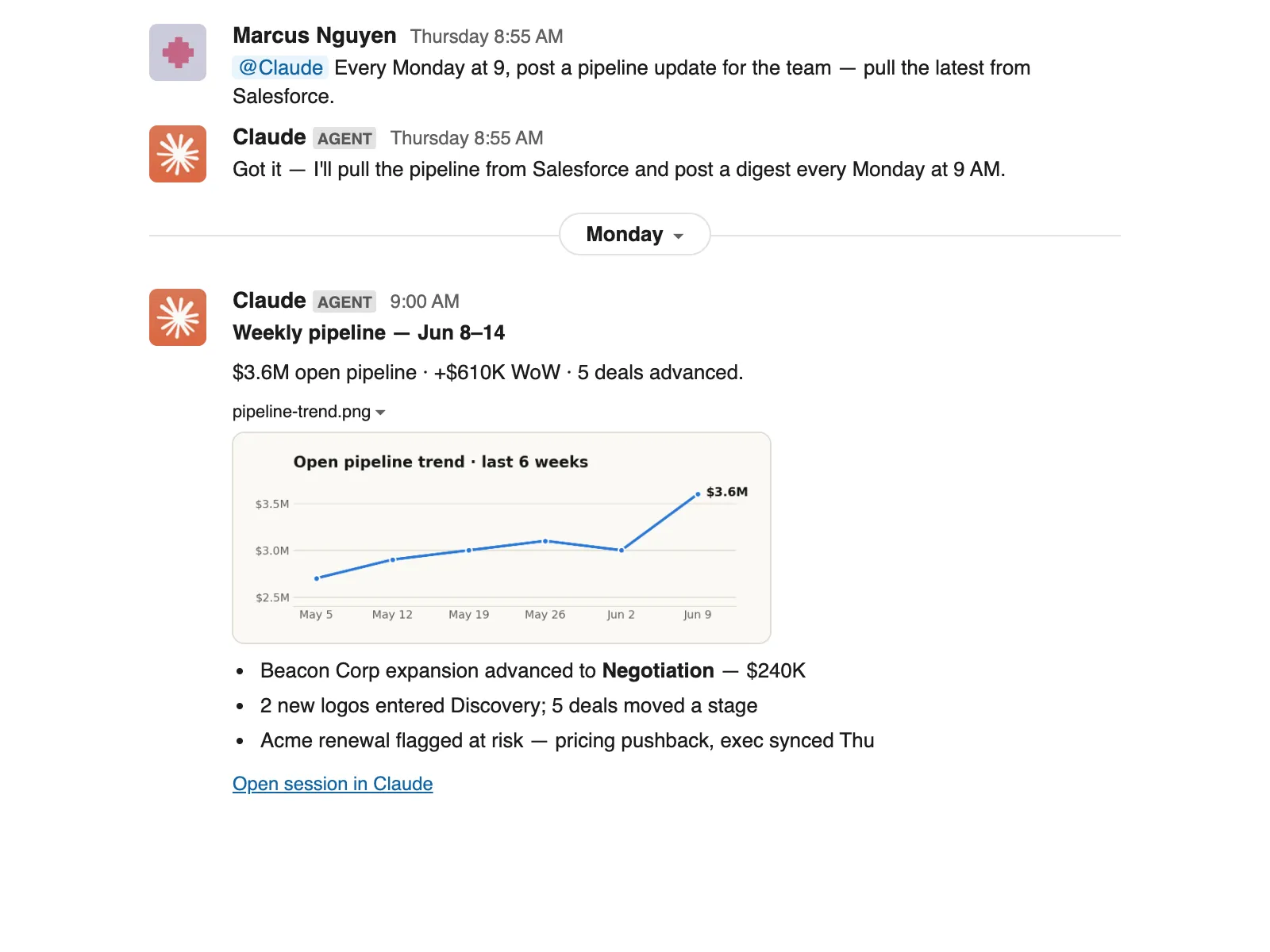
Access, memory and security
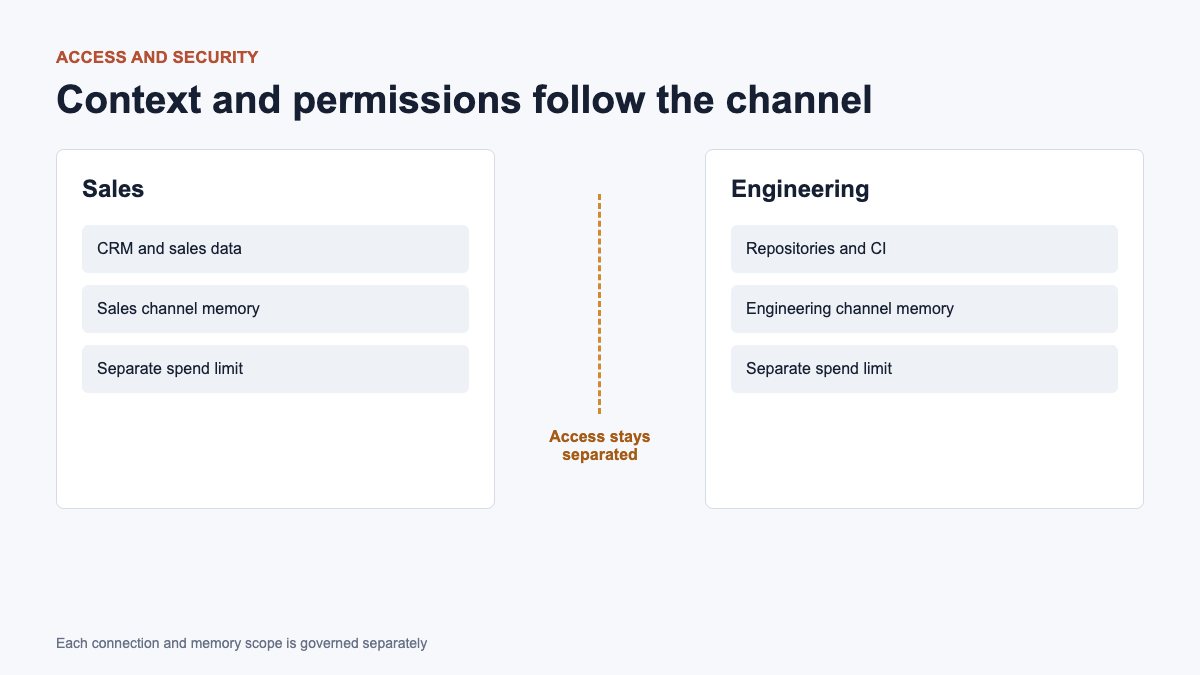
- Isolated environment: Each Slack thread runs in Anthropic’s sandbox, which does not store credentials.
- Agent Proxy: Credentials are provided at the network border only for authorized hosts.
- Default prohibition: outgoing connections to unauthorized addresses are blocked.
- Attribution: actions in external systems are performed under the agent’s own service accounts.
- Public channels: The memory formed in them can be common to the workspace.
- Private channels: their own memory remains isolated and is not transferred to the shared workspace memory.
- Personal messages: work through the user’s personal account and its connectors; An administrator can disable DMs for an organization.
The full security model is described in section Security and data handling. Before connecting a CRM, repository or data warehouse, conduct a separate permission check and use the principle of least necessary access.
How to switch from old Claude to Slack
Claude Tag replaces the previous custom integration, but the existing Slack app and name @Claude are saved. Personal connections do not automatically transition to the new agent identity: repositories and external services must be reassigned via the Access bundle.
The current documentation does not indicate a universal 30-day period. The Legacy version is being decommissioned, and the switchover date for a specific organization should be confirmed with the account team. Details are published in the instructions Migrate from the earlier Claude in Slack.
Frequently asked questions
Who can use Claude Tag?
At launch, the public beta is available to Claude Enterprise and Team organizations on Slack.
Who can complete the setup?
Owner of the organization Claude. You also need a Slack workspace administrator to install and pair.
Can Claude Tag run on a schedule?
Yes. You can create routines, monitor a channel, and run tasks based on a schedule or event.
Does Claude see external systems immediately after installation?
No. By default there is no external access. The owner of the organization separately adds connections and allowed areas through the Access bundle.
Related Cifrum.kz guides: learn how reusable Codex skills are structured and see how Claude Opus performed in selected cybersecurity tests.
Conclusion
Claude Tag is useful not only as a chatbot, but as a general agent with controlled identity, channel memory and access to working tools. Safe launch starts with a private pilot, minimum permissions, service accounts and a small spending limit. Once verified, you can gradually expand access for individual teams.
Official interface images belong to Anthropic and are used for informational purposes with credit given. Other images are for explanatory purposes only and do not contain any personal information.


Comments on this article